 GeoCalendar
Connect it
- Open Integrations.
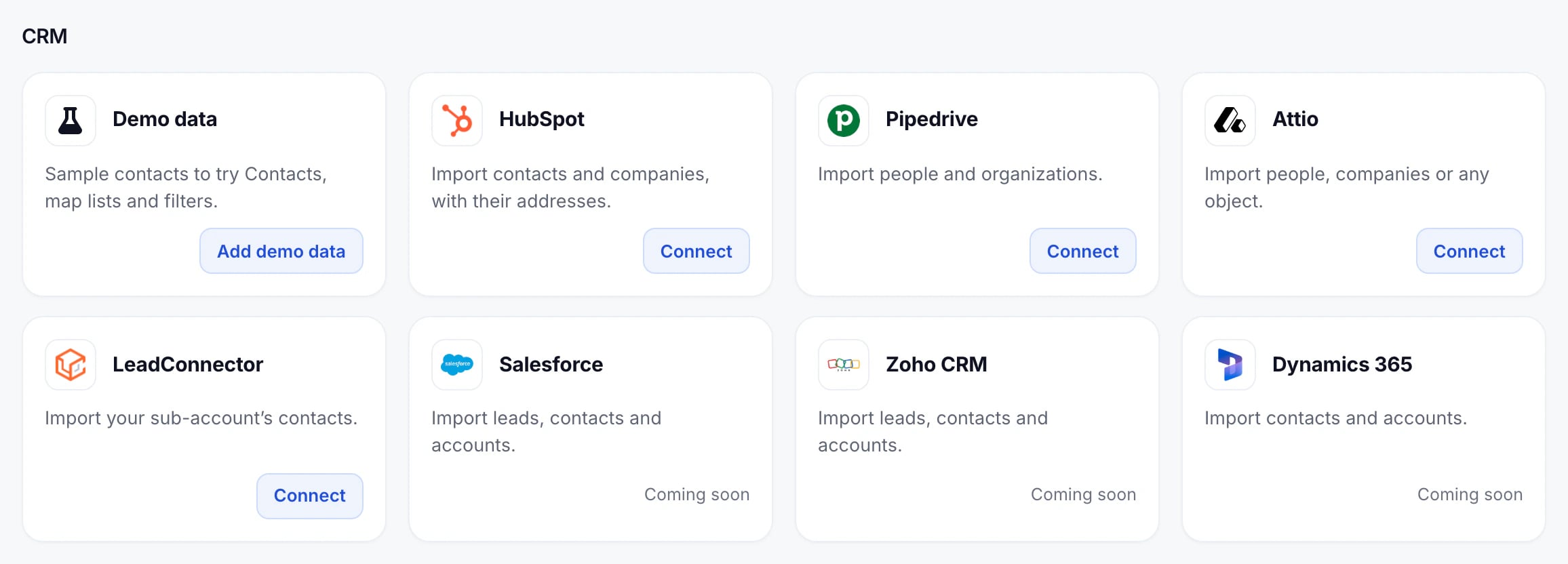
- Under CRM, press Connect on Attio.
- Sign in to Attio, choose the workspace, and allow GeoCalendar to read it.
Choose what to import
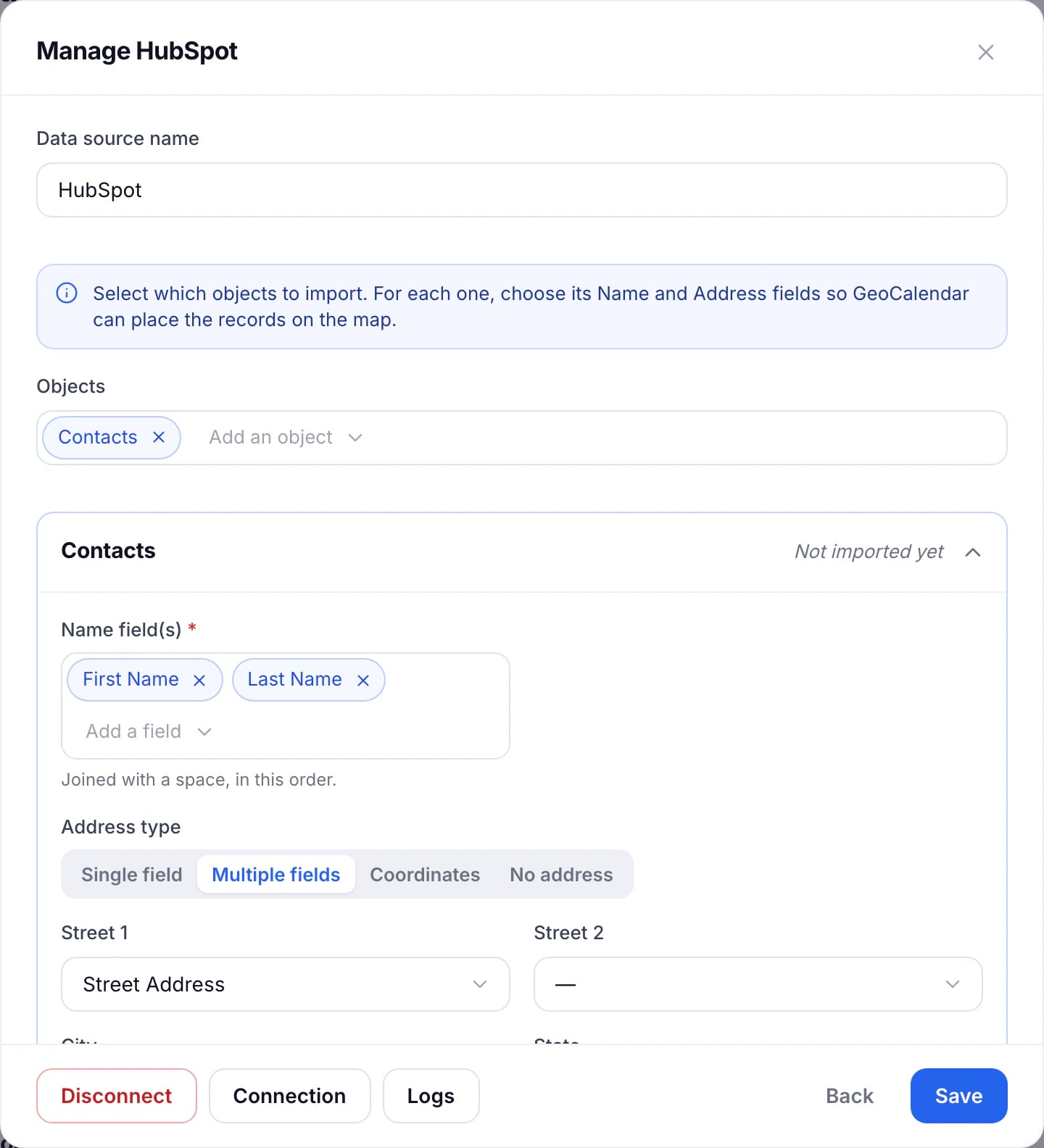
Back in GeoCalendar, the CRM’s Manage window opens. Pick the objects to import and, for each, the fields that hold its name and its address, so GeoCalendar can put the records on the map. Press Save.
The first import starts straight away, and the card reads Importing… until it’s done. The records then appear on Contacts, and as lists on the map.
CRM imports come with the Team plan, and with your trial. Only admins can connect a CRM, and a workspace connects one CRM at a time.
Updated November 12, 2026
Learn moreAttio integration