 GeoCalendar
- Open Integrations.
- Press More actions on the CRM’s card, then Disconnect.
- Press Disconnect to confirm.
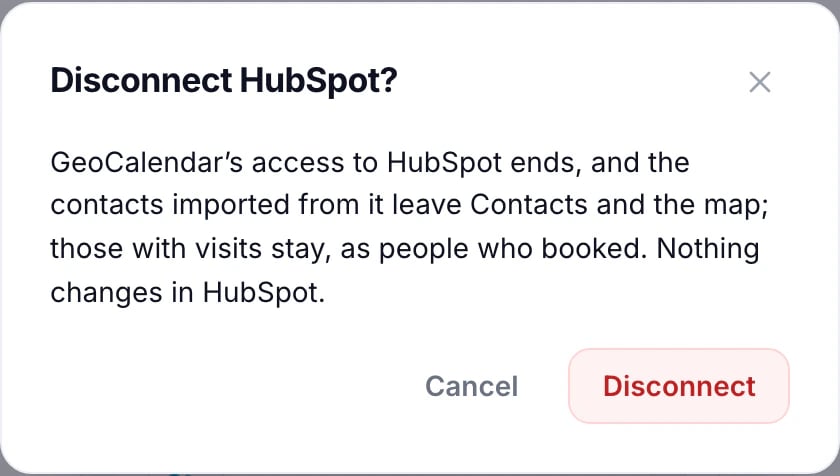
What happens
- GeoCalendar’s access to the CRM ends: it stops reading it.
- The contacts imported from it leave Contacts and the map, with the map lists made from them.
- Contacts you booked a visit with stay, as people who booked.
- Nothing changes in the CRM.
- Your plan doesn’t change. To change or cancel it, open Settings, then Billing.
To move to another CRM, disconnect this one first: a workspace connects one CRM at a time.
Uninstalling from the CRM
Uninstalling GeoCalendar from the CRM’s own app settings ends its access too. Within 30 minutes the CRM’s card on Integrations says Needs attention. Press More actions, then Disconnect, to remove the imported contacts, or Reconnect to carry on.
Updated November 12, 2026