 GeoCalendar
Change it
- Open Settings, then Billing.
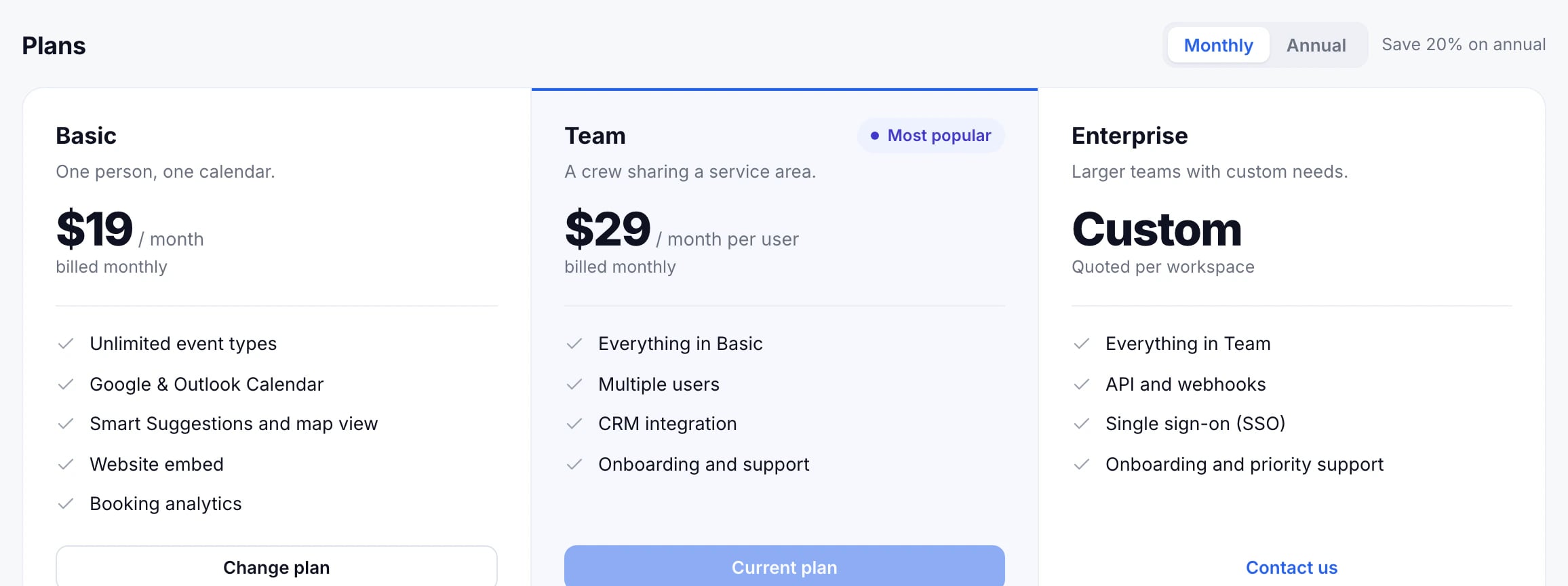
- Choose Monthly or Annual above the plans.
- Press Change plan on the plan you want, and confirm.
When it takes effect
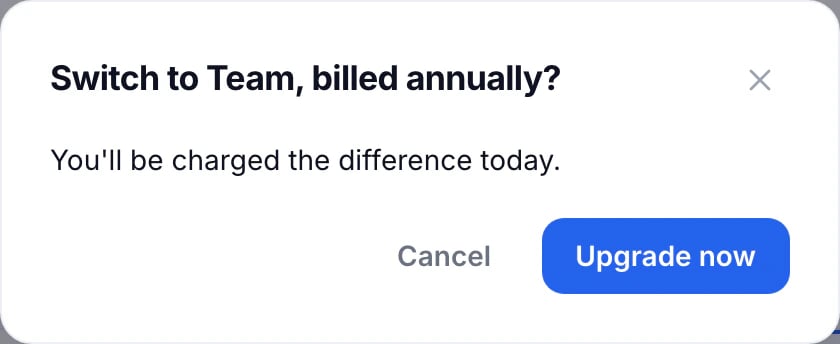
- Upgrading, such as Basic to Team or monthly to annual: you’re charged the difference that day, and the new plan starts at once. The button reads Upgrade now.
- Downgrading: nothing is charged, and your current plan runs to the end of the period you’ve paid for. The button reads Schedule the change, and Billing shows the date it changes.
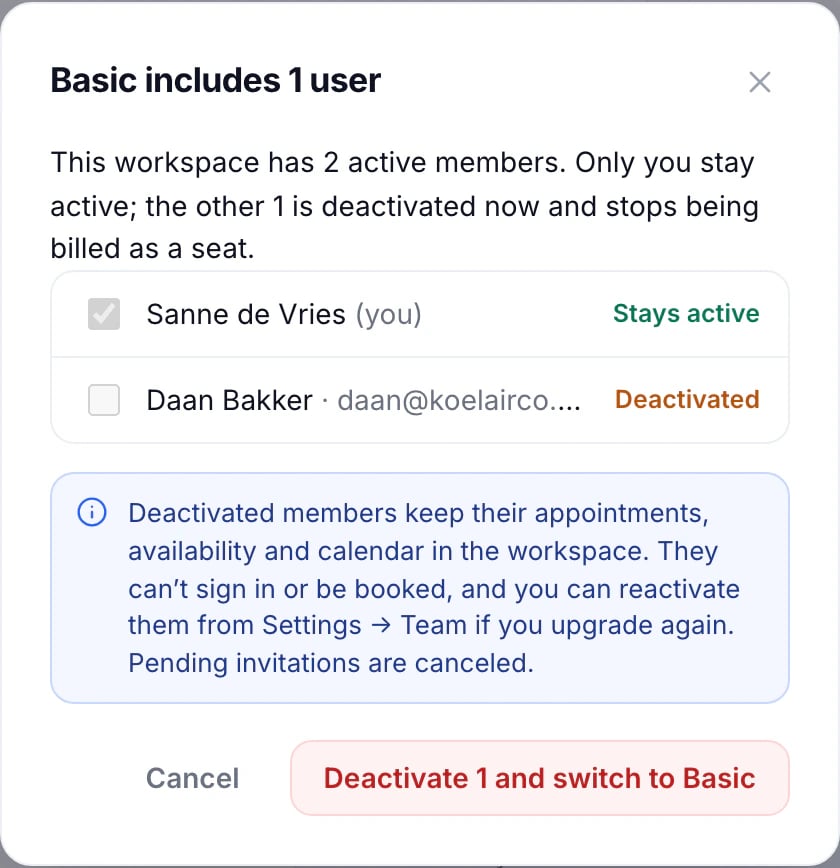
Moving to Basic with a team
Basic is for one person, so you choose who stays. Everyone else is deactivated straight away: they can’t sign in or take bookings, and their appointments and history are kept. Invitations still waiting to be accepted are canceled. After moving back to Team, reactivate people from Settings, Team.
Adding and removing people on Team
Team is billed per active user. Someone who joins mid-period appears, prorated, on the next invoice; someone you deactivate stops counting.
Updated November 10, 2026
Learn morePricing