 GeoCalendar
- Download your appointments first, if you want to keep them: see Export your appointments.
- Open Settings, on the Profile tab, and press Close workspace.
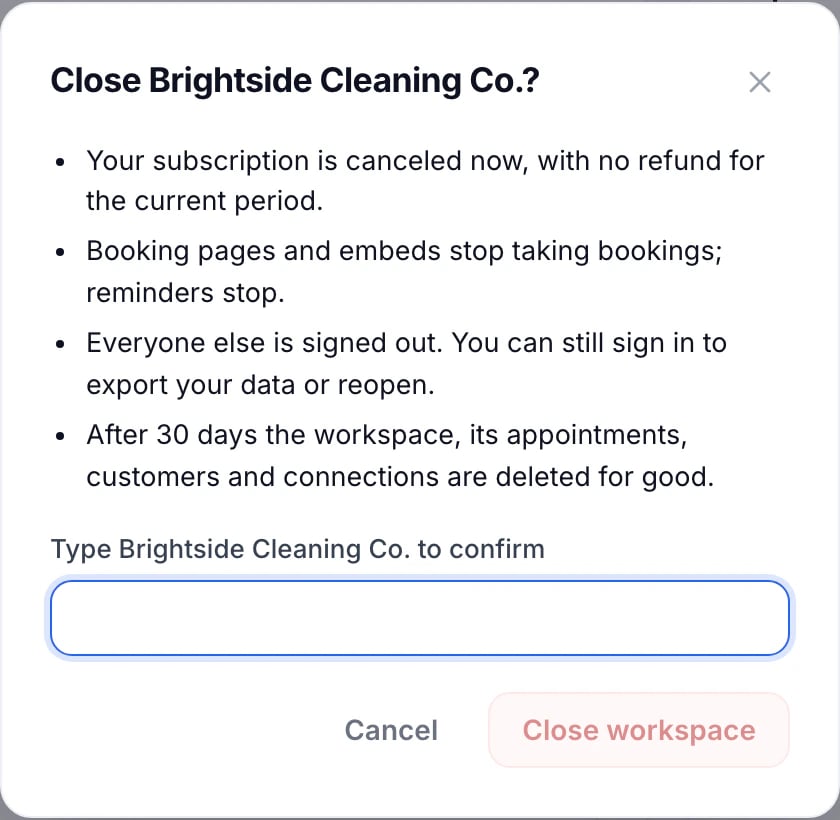
- Type the workspace’s name to confirm, and press Close workspace.
What happens
- The subscription is canceled straight away, with no refund for the current period.
- Booking pages and embeds stop taking bookings, and reminders stop.
- Everyone else is signed out. You can still sign in to export your data, or to reopen the workspace.
- After 30 days, the workspace, its appointments, customers and connections are deleted for good.
Only admins can close a workspace. A member who wants to leave asks an admin to remove them, and can email support@geocalendar.io to have their personal data deleted.
Updated November 10, 2026