 GeoCalendar
Open Settings, on the Profile tab. Below your own name and photo are the workspace’s settings, which only admins can change. Each saves as soon as you choose it.
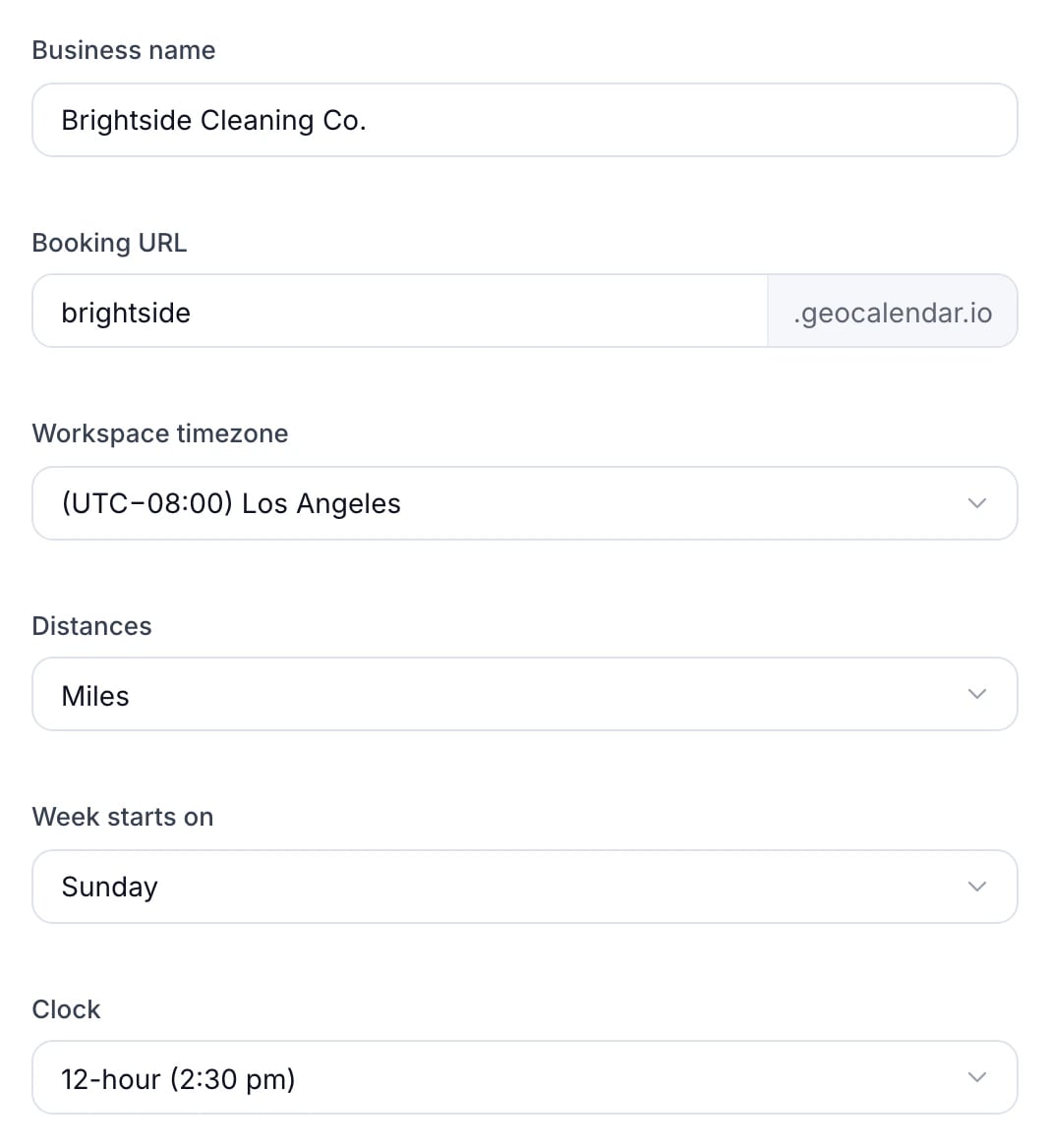
The settings
- Business name: on your booking pages and in emails.
- Booking URL: the end of your booking pages’ address. Links already shared with the old one stop working, so change it before you share it widely.
- Workspace timezone: the time zone of the workspace as a whole. Each person’s hours use their own, on Availability.
- Distances: miles or kilometres, on the calendar, the map and the service area.
- Week starts on: the first day of the week on the calendar and the booking page.
- Clock: 12-hour or 24-hour times, in the app and on the booking page.
A new workspace picks these from your country, so most people never need to change them.
Updated November 10, 2026