 GeoCalendar
The confirmation and reminder emails, and the last step of the booking page, have Manage booking. It opens the booking with Reschedule and Cancel booking.
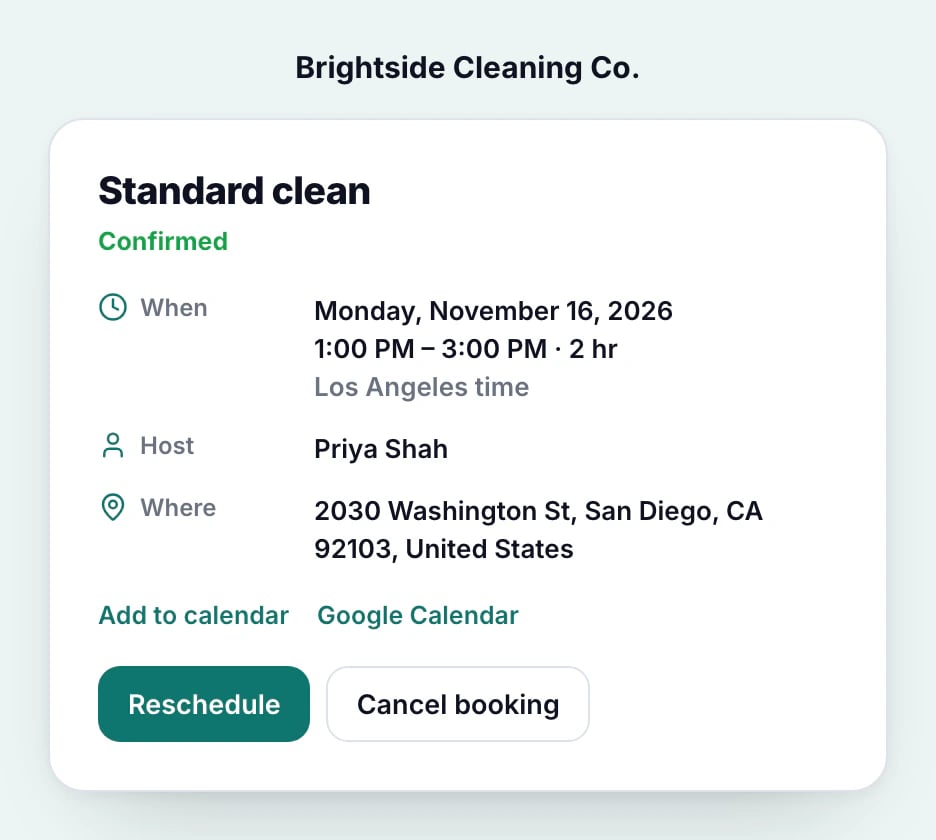
Reschedule
The customer picks a new time from the same times the booking page offers. The visit moves on your calendar, and both of you get an email with the new time. With a rotating pool, the event type decides whether the visit stays with its host or goes to whoever is next.
Cancel
The customer can give a reason, then confirms. The visit leaves your calendar, the time opens up again, and you get an email with their reason.
Too close to the visit
Online changes stop at the event type’s Minimum notice: with 1 day’s notice, a visit tomorrow morning can no longer be moved online. The page then shows your phone number or website, from Branding, so the customer can contact you.
You’re emailed about changes unless you turned off Canceled or moved in Notifications.
Updated November 10, 2026