 GeoCalendar
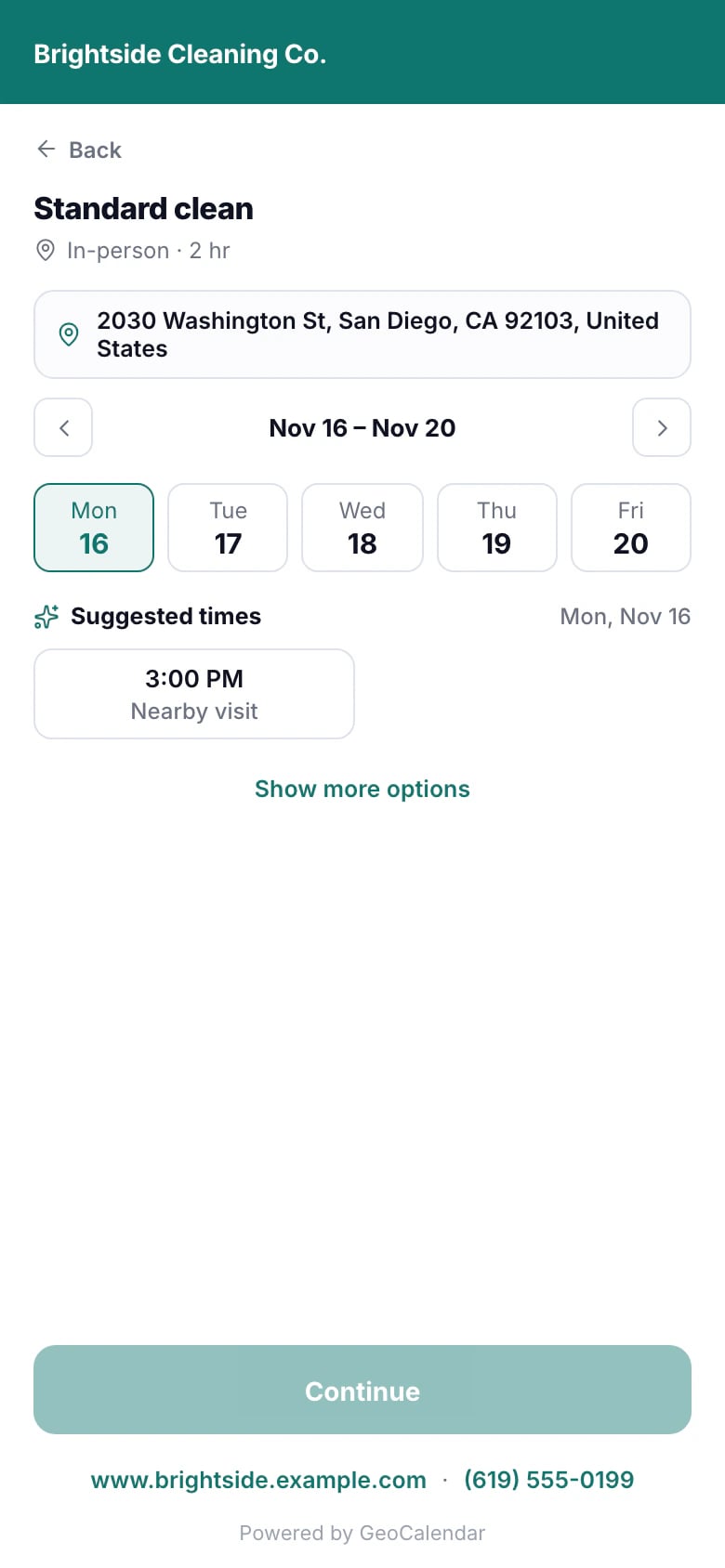
An in-person event type asks for the address first, so every time it offers is one you can reach. A virtual one starts at the times.
1. The address
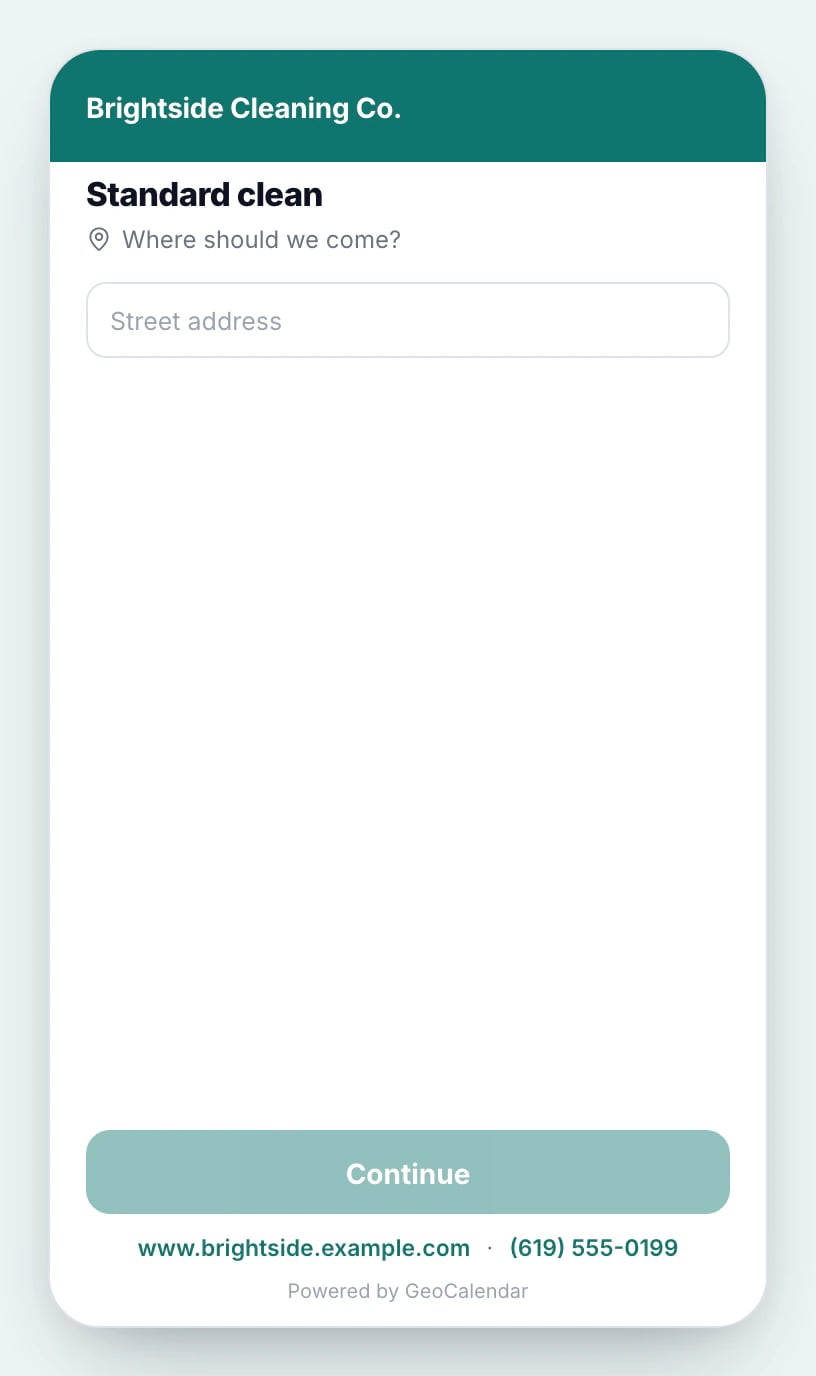
The customer types their address under Where should we come? and picks it from the list. An address outside your service area is turned away there, before any time is shown.
2. A time
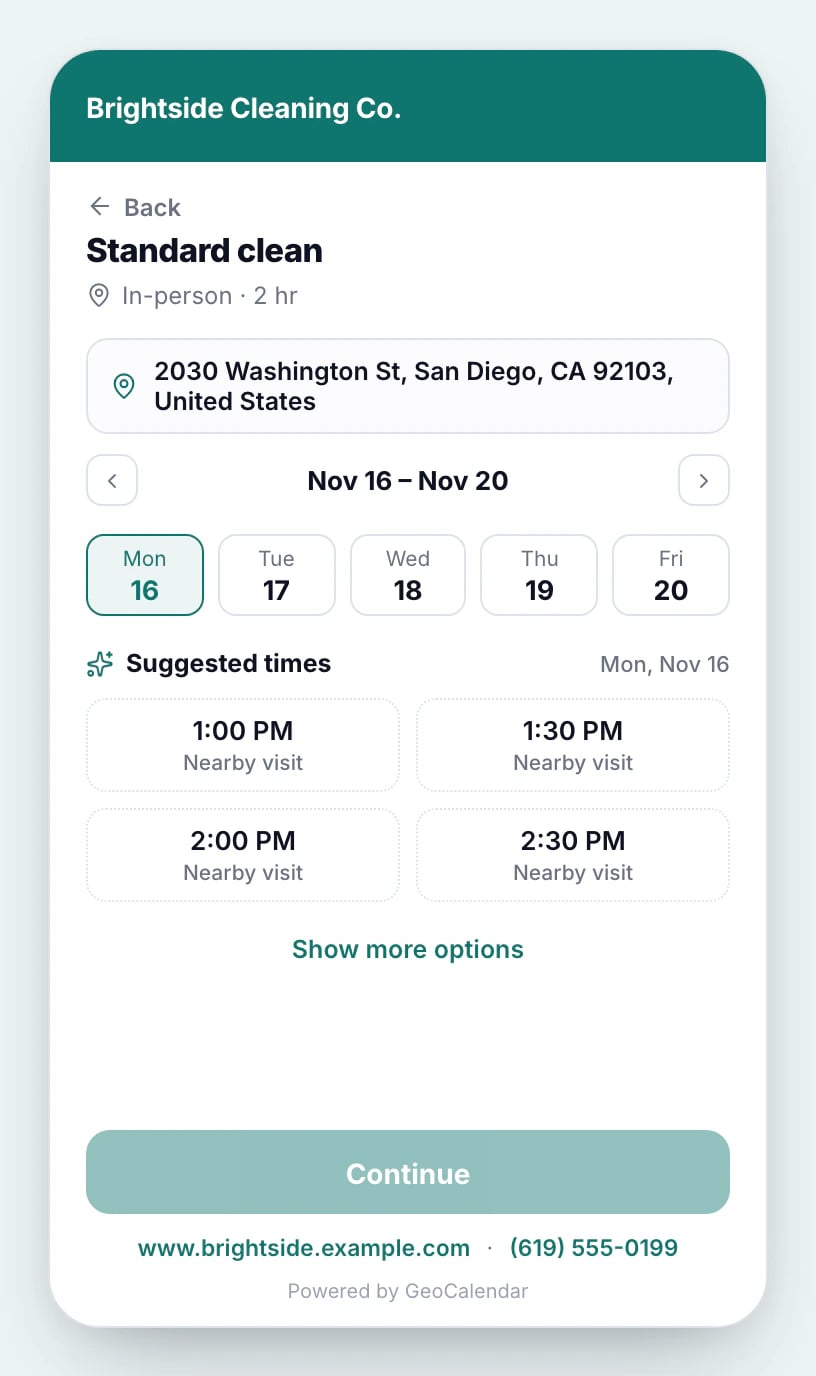
With Smart Suggestions on, the page leads with a few Suggested times: the ones that fit best around your visits nearby. Show more options opens every open time.
3. Their details
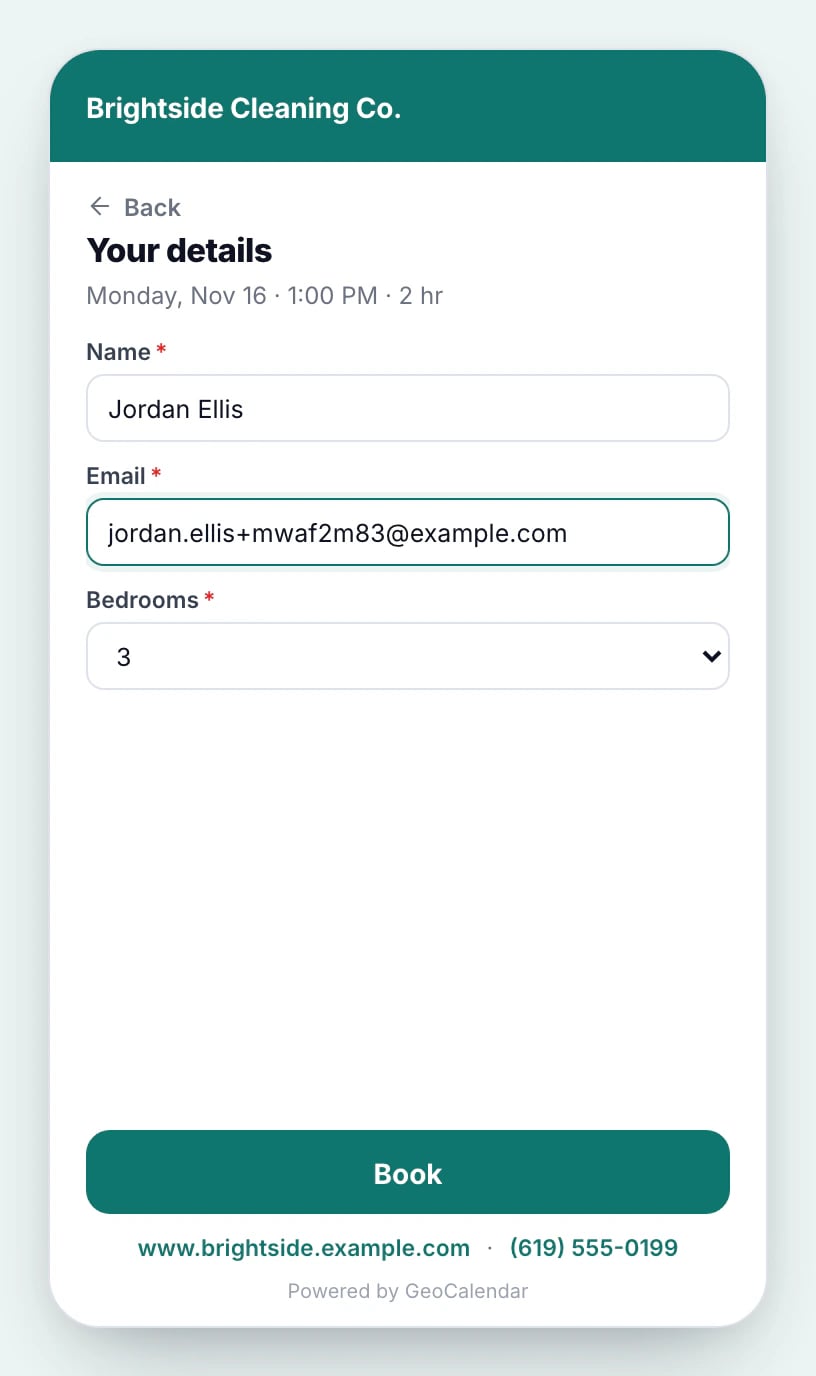
Name and email, then any questions you added to the form. Book confirms it; on an event type that needs your approval, the button reads Send request.
4. Booked
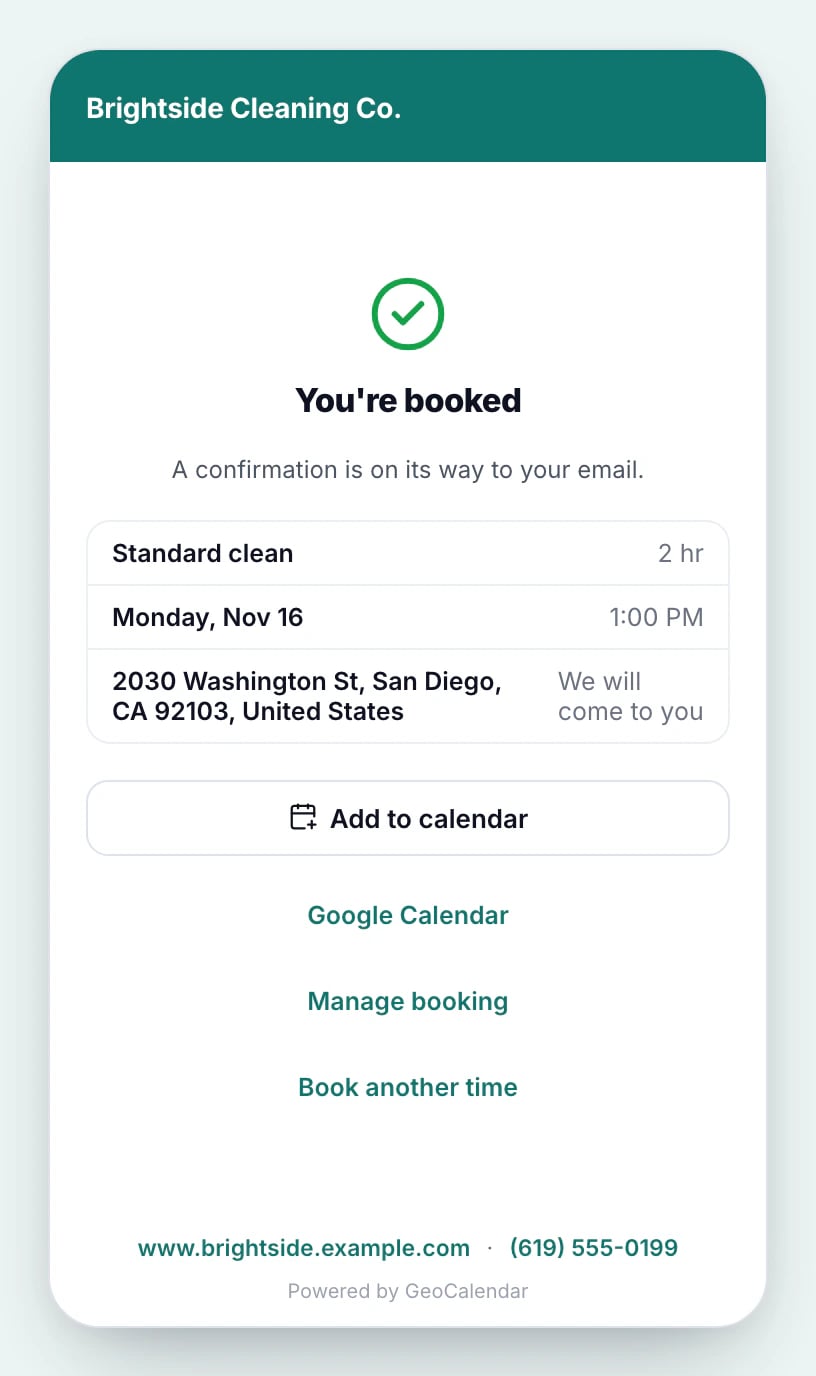
The page confirms the booking and offers Add to calendar. The customer gets a confirmation email with the time, the place and a Manage booking button, with a calendar file attached, and a reminder 24 hours before if reminders are on.
On a phone
The page fills the screen on a phone, with controls a thumb can hit and text large enough that the phone doesn’t zoom in.
Updated November 11, 2026
Learn moreThe booking widget