 GeoCalendar
Every drive time GeoCalendar shows is measured from your home base: the first visit of the day from it, and the last one back to it. Your service area is measured from it too. Until you set one, the calendar shows no drive times.
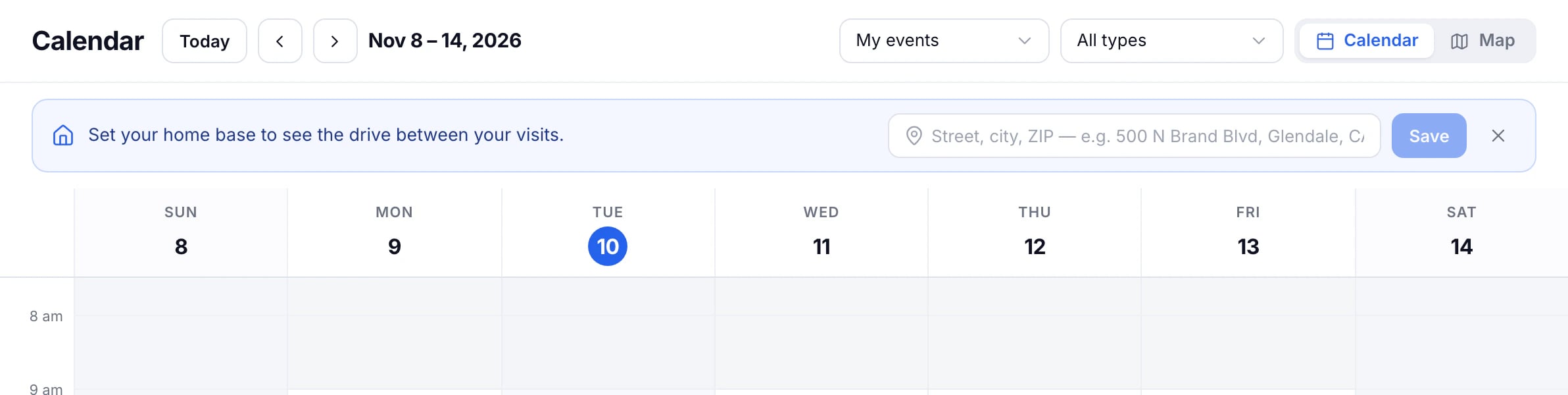
Set your home base
- Open Availability.
- In Home base, type the address your days start from and choose it from the list.
- Press Save in the same card.
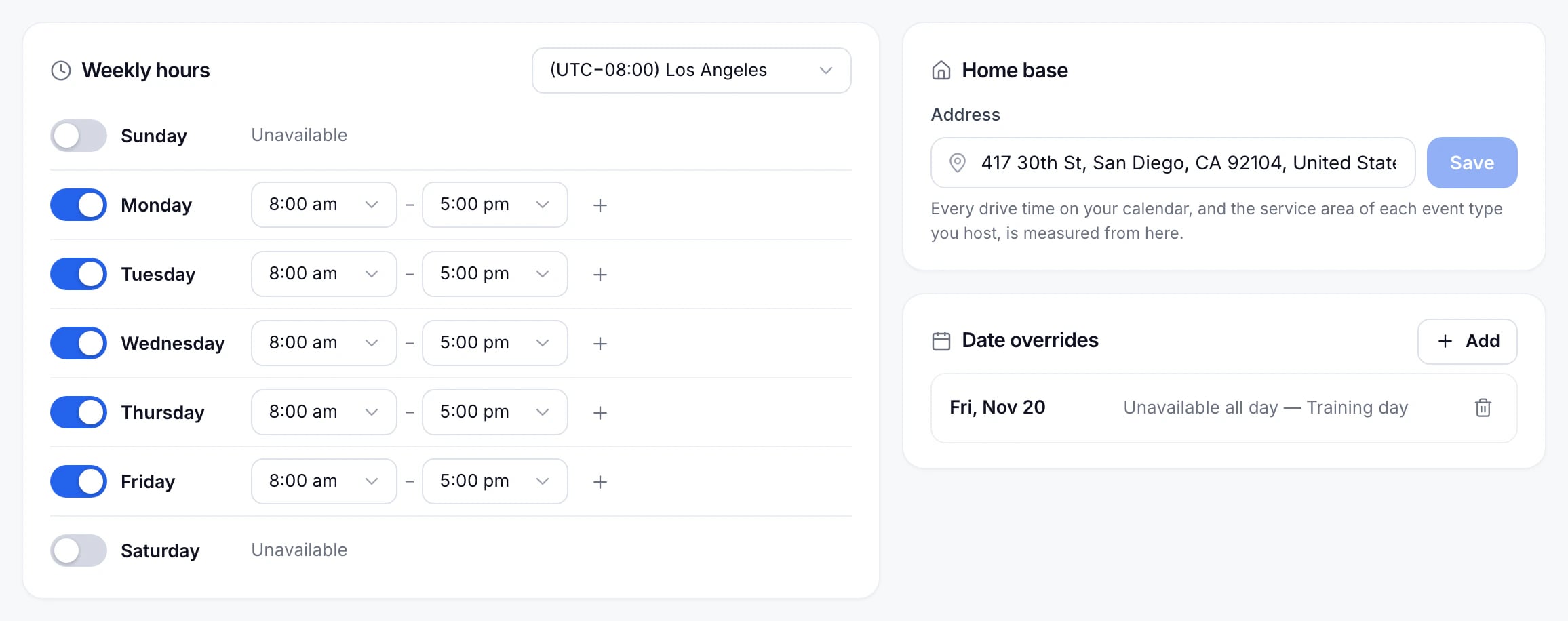
Set your weekly hours
- Switch each day on or off. A day that’s off reads Unavailable.
- Set a start and an end for the day. Press + to add a second range, for a lunch break or a split shift.
- On a weekday, Copy to weekdays gives the other weekdays the same hours.
- Check the Timezone, then press Save changes in the bar at the bottom.
If the time zone doesn’t match your home base, the page says so and offers to use the home base’s.
Days off and different hours on a date
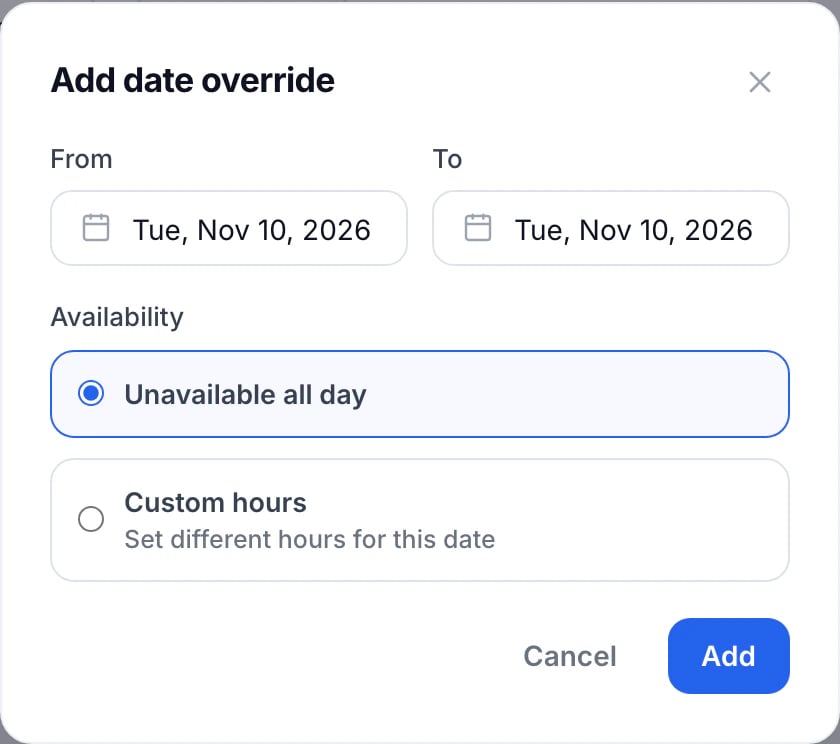
Under Date overrides, press Add override. Choose the dates, then Unavailable all day for a day off or Custom hours for different hours that day.
Updated November 11, 2026
Learn moreAvailability