 GeoCalendar
 runs in your browser at app.geocalendar.io. Signing up creates your account and your business’s workspace together; teammates join it later by invitation.
Sign up
- Go to app.geocalendar.io/signup.
- Enter Your name, Business name, Work email and a Password of at least 8 characters.
- Press Create account.
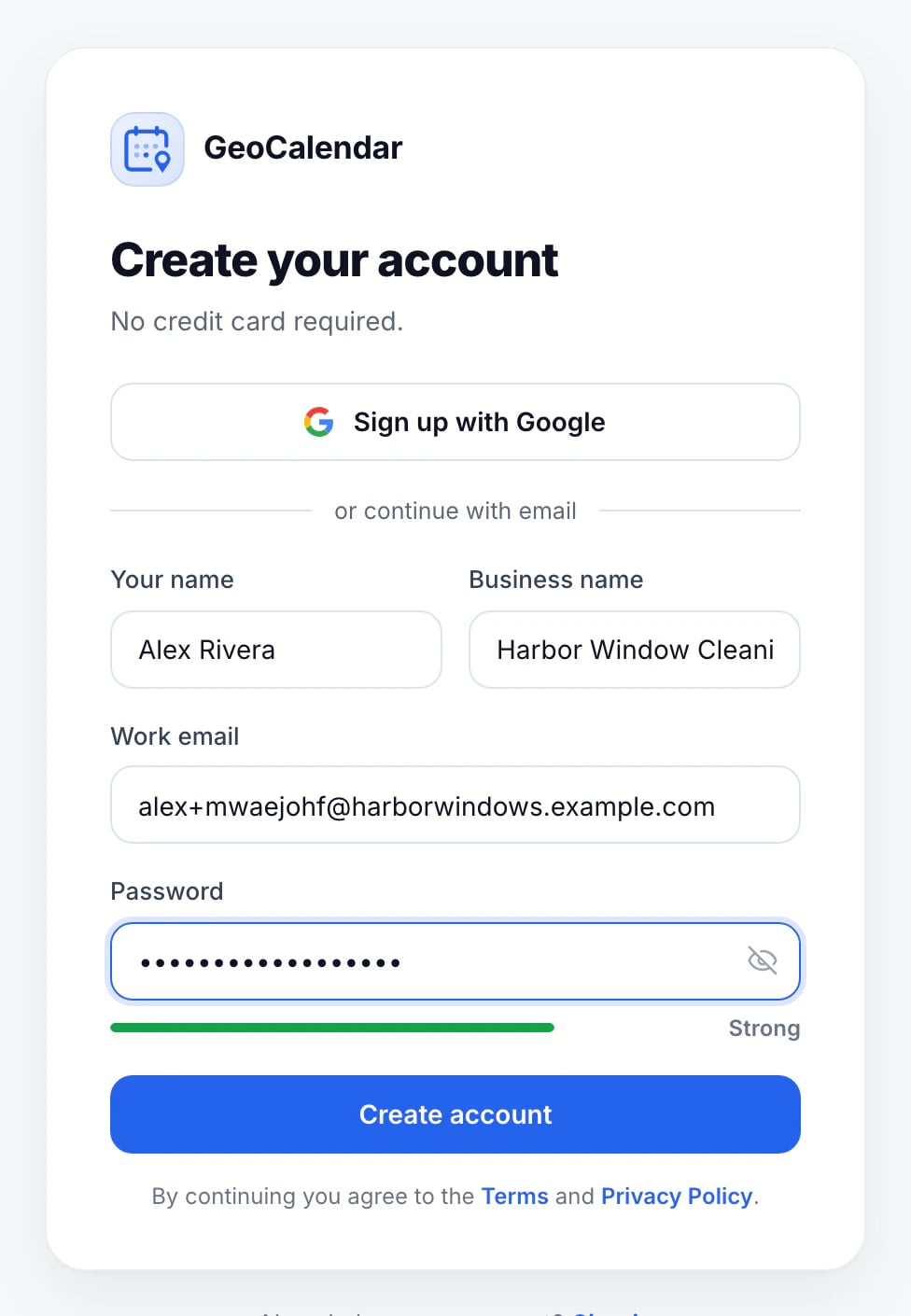
To sign up with Google instead, press Sign up with Google and choose your account. You then name your workspace and choose its booking address before you continue.
Confirm your email
We send a Confirm your GeoCalendar email message as soon as you sign up. Its link works once and for 24 hours. Until you press it, a bar at the top of the app reminds you, with Resend in case the email went missing.
Nothing waits on the confirmation: you can set everything up first. Signing up with Google confirms the email for you.
Connect your calendar
The first thing GeoCalendar asks is which calendar you use. It reads your busy times from it, so customers are never offered a time you already have booked, and it adds every new booking to it.
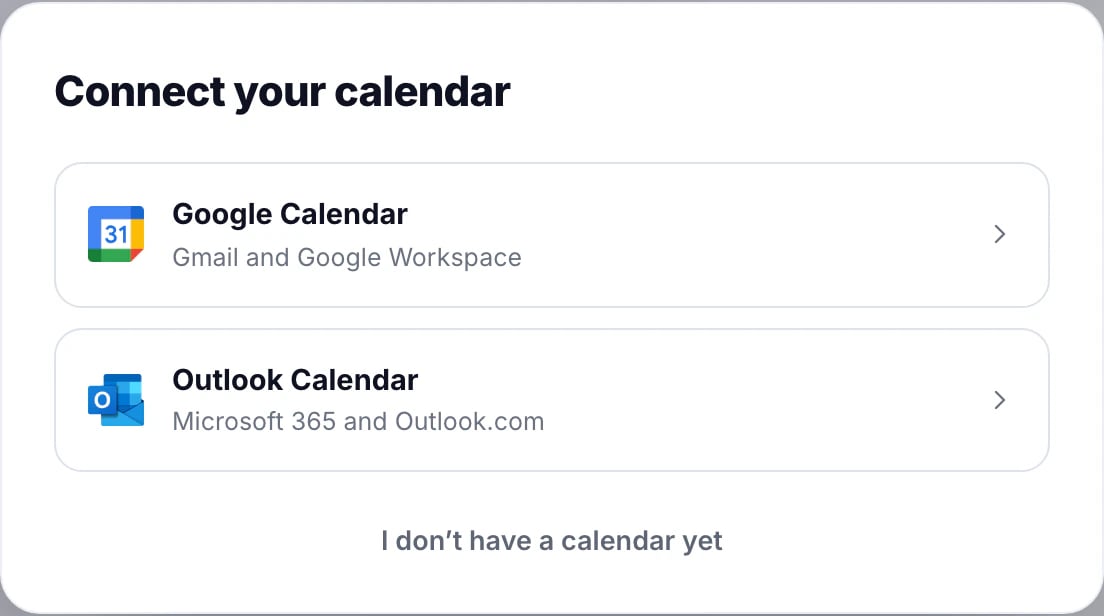
Choose Google Calendar or Outlook Calendar. If you don’t keep a calendar yet, choose I don’t have a calendar yet; you can connect one later under Integrations.
What a new workspace starts with
- A 14-day trial with every Team feature. See Your 14-day trial.
- Working hours of Monday to Friday, 9 to 5, in your browser’s time zone.
- Distances in miles in the US and UK and kilometres elsewhere, and the week and clock your country uses. You can change all three in Settings.
- No home base and no event types yet: the next two steps.
Updated November 11, 2026