 GeoCalendar
Outlook Calendar works with Microsoft 365 work and school accounts and with personal Outlook.com accounts, and syncs both ways: its events count as busy, and every booking is added to it.
Connect it
- Open Integrations.
- Under Calendars, press Connect on Outlook Calendar.
- Sign in to Microsoft and accept the permissions GeoCalendar asks for.
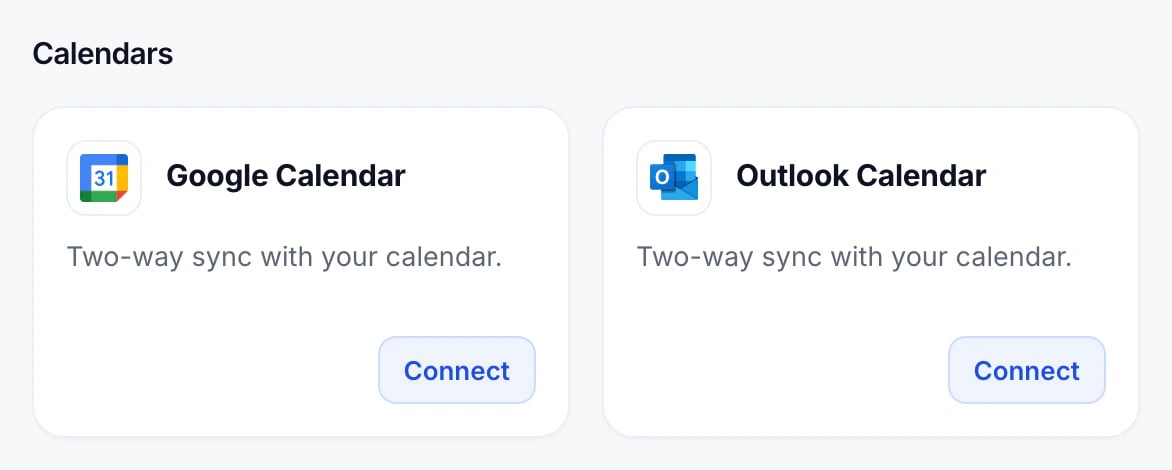
You can connect one calendar at a time. To move from Google to Outlook, disconnect Google Calendar first.
Choose a calendar and show category colours
Press Manage on the connected card to pick a different calendar, or to turn on Show category colours: appointments then show the colours of their Outlook categories. Outlook asks for permission the first time.
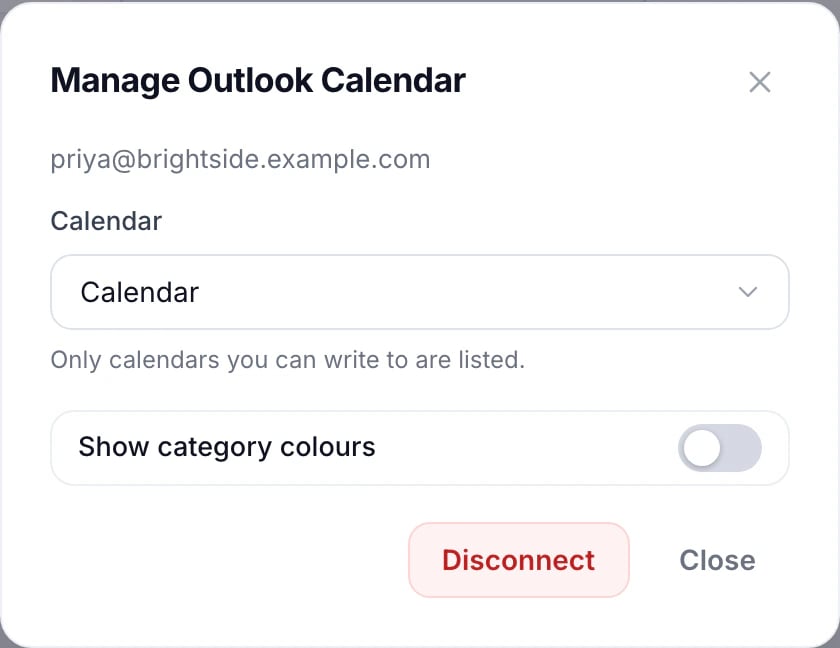
Whether an event type’s visits show these colours is up to it: see Calendar colours.
Microsoft Teams links
On a Microsoft 365 work or school account, virtual event types can use Microsoft Teams, and each booking gets its own Teams link. Personal Outlook.com accounts can’t create Teams meetings.
Updated November 11, 2026
Learn moreOutlook Calendar integration