 GeoCalendar
Google Calendar syncs both ways. Events on it count as busy, so the booking page doesn’t offer those times, and each booking customers make is added to it. Each person in a workspace connects their own calendar.
Connect it
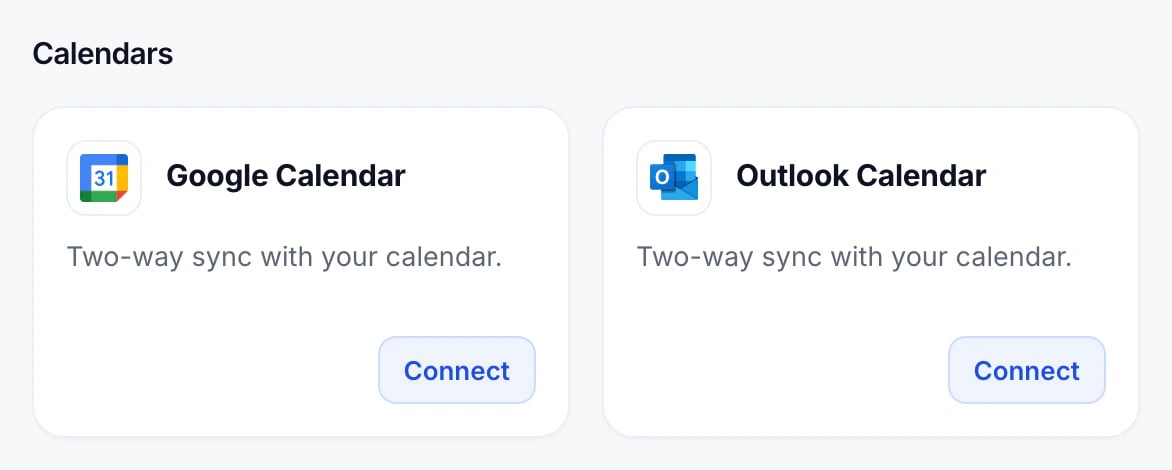
- Open Integrations in the menu on the left.
- Under Calendars, press Connect on Google Calendar.
- Choose your Google account and allow GeoCalendar access to your calendar.
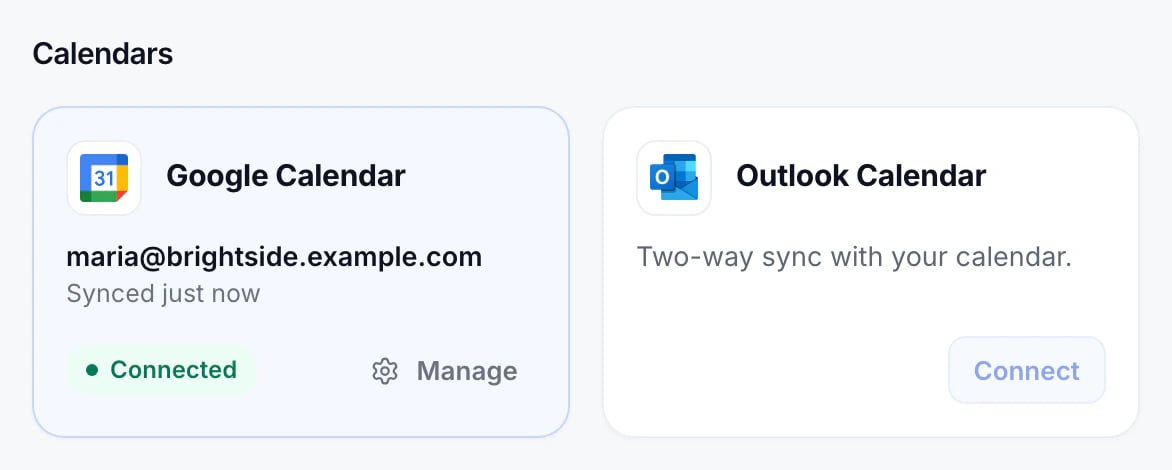
Back in GeoCalendar, the card says Connected, with your account and when it last synced.
Choose which calendar
GeoCalendar uses your primary Google calendar to begin with. To use another, press Manage and pick it under Calendar. Only calendars you can add events to are listed.
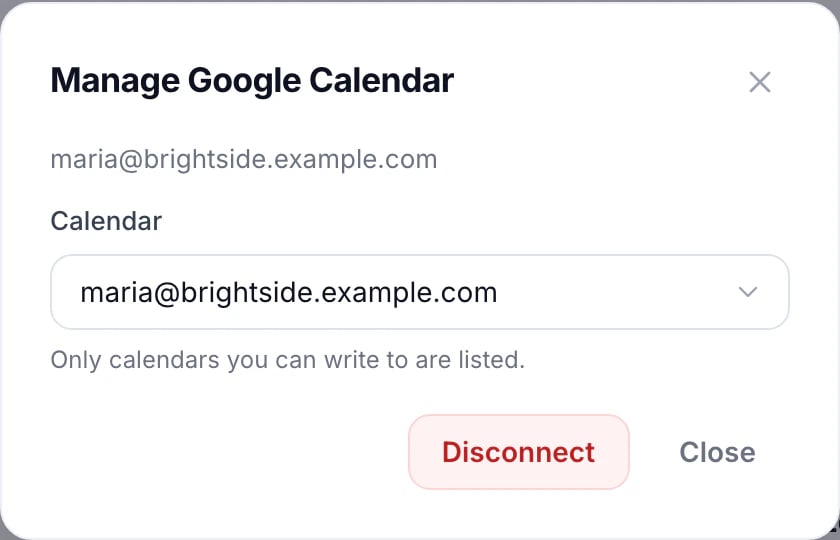
One calendar does both jobs: its events are your busy times, and new bookings are added to it.
Google Meet links
With Google Calendar connected, virtual event types can use Google Meet: each booking gets its own Meet link, created through your calendar. See In person, virtual or custom.
Disconnect
Press Manage, then Disconnect. The events GeoCalendar imported from the calendar are removed from it, and bookings stop being added to your Google calendar. If you connect again later, those events are imported again.
Updated November 11, 2026
Learn moreGoogle Calendar integration